








Introduction
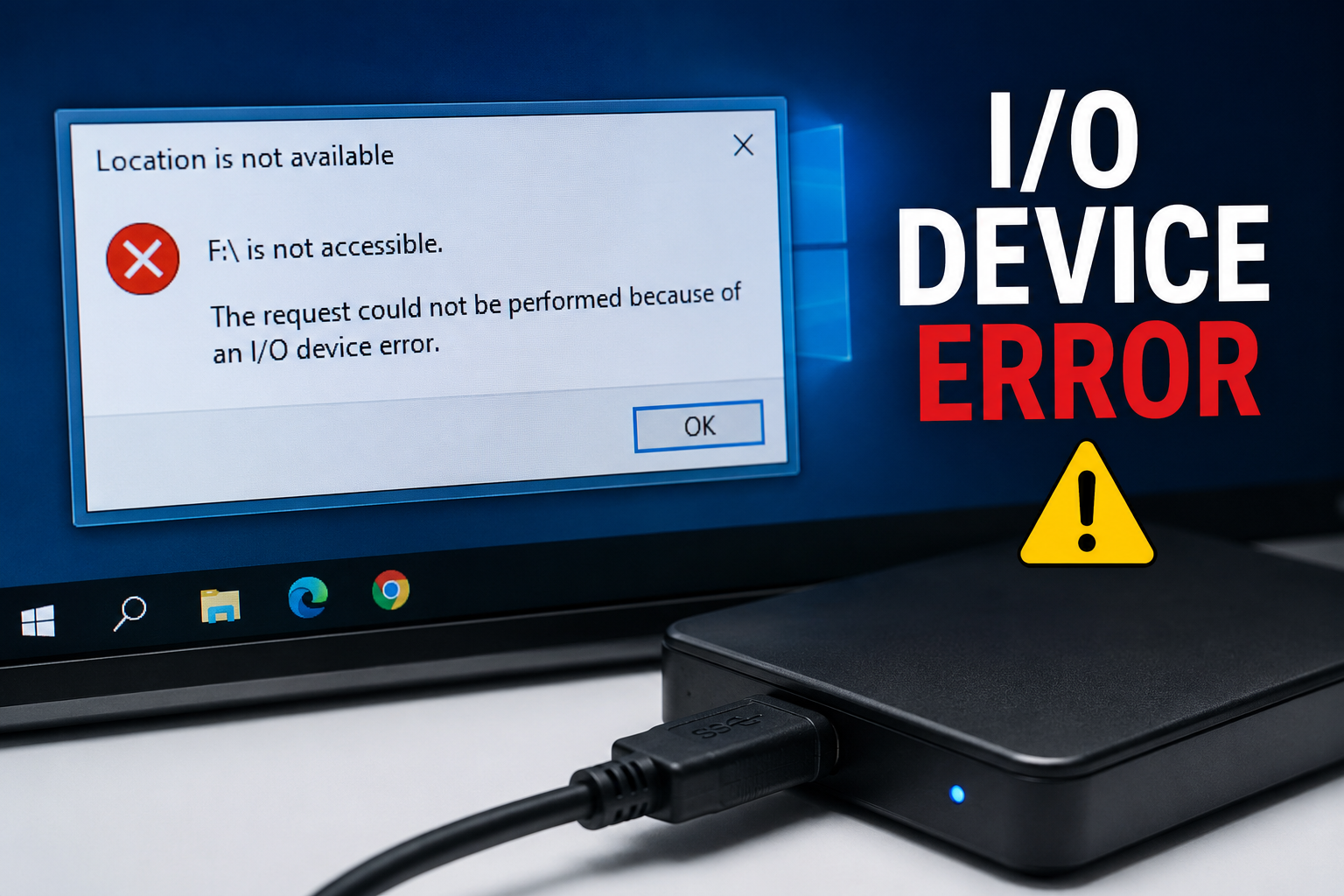
An i/o device error is one of the most frustrating issues Windows users encounter when accessing a hard drive, USB flash drive, SD card, external SSD, or DVD. This error usually appears when your computer cannot communicate properly with a storage device due to hardware faults, outdated drivers, incorrect settings, or damaged files.
If you’re facing an i/o device error, don’t panic. In most cases, the issue can be resolved without replacing your storage device. This guide explains the causes of the error and provides proven solutions to help you regain access to your data.
What Is an I/O Device Error?
An i/o device error occurs when Windows fails to read from or write to a storage device. Since “I/O” stands for Input/Output, the error indicates that communication between the operating system and the connected hardware has failed.
You may see messages like:
- “The request could not be performed because of an I/O device error.”
- “Error 0x8007045D: The request could not be performed because of an I/O device error.”
- “The device is not accessible due to an I/O device error.”
This problem can affect both internal and external storage devices.
Common Causes of I/O Device Error
Several factors can trigger an i/o device error, including:
Loose or Damaged Cable
A faulty USB cable or SATA cable can interrupt communication between your computer and the storage device.
Corrupted Device Drivers
Outdated or damaged storage drivers may prevent Windows from recognizing the device correctly.
Bad Sectors
Hard drives and SSDs can develop bad sectors over time, making certain areas unreadable.
File System Corruption
Unexpected shutdowns, malware, or unsafe device removal can corrupt the file system.
Hardware Failure
Older storage devices may fail because of physical damage or wear.
7 Powerful Fixes for I/O Device Error
Reconnect the Storage Device
The first step is to disconnect the device and reconnect it securely.
Try these simple checks:
- Use another USB port.
- Replace the USB cable.
- Test the device on another computer.
- Restart your PC.
Many i/o device error issues disappear after reconnecting the hardware properly.
Update Device Drivers
Outdated drivers are one of the most common reasons for an i/o device error.
Steps:
- Open Device Manager.
- Expand Disk Drives.
- Right-click your device.
- Select Update Driver.
- Install the latest available driver.
Restart your computer after updating.
Run CHKDSK
Windows includes the CHKDSK utility to repair file system errors.
Open Command Prompt as Administrator and run:
chkdsk X: /f /rReplace X with your drive letter.
CHKDSK scans the drive, repairs logical errors, and recovers readable data from bad sectors whenever possible.
Change the Transfer Mode
Sometimes incorrect IDE or SATA transfer settings cause an i/o device error.
To fix it:
- Open Device Manager.
- Expand IDE ATA/ATAPI Controllers.
- Open the controller properties.
- Switch the transfer mode to DMA if available.
- Restart your PC.
Check the Disk for Physical Damage
Inspect your storage device for signs of damage.
Look for:
- Clicking noises
- Overheating
- Loose connectors
- Broken USB ports
If the hardware is physically damaged, professional data recovery may be necessary.
Repair Corrupted System Files
Corrupted Windows system files can also generate an
Run System File Checker:
sfc /scannowAfter the scan finishes, restart your computer and test the drive again.
Recover Data Before Formatting
If none of the above methods work, recover important files before formatting the drive.
Professional recovery software can help retrieve documents, photos, and videos from inaccessible drives.
After recovery:
- Format the drive.
- Create a new partition.
- Restore your backup.
Formatting should always be your last option.
How to Prevent I/O Device Error
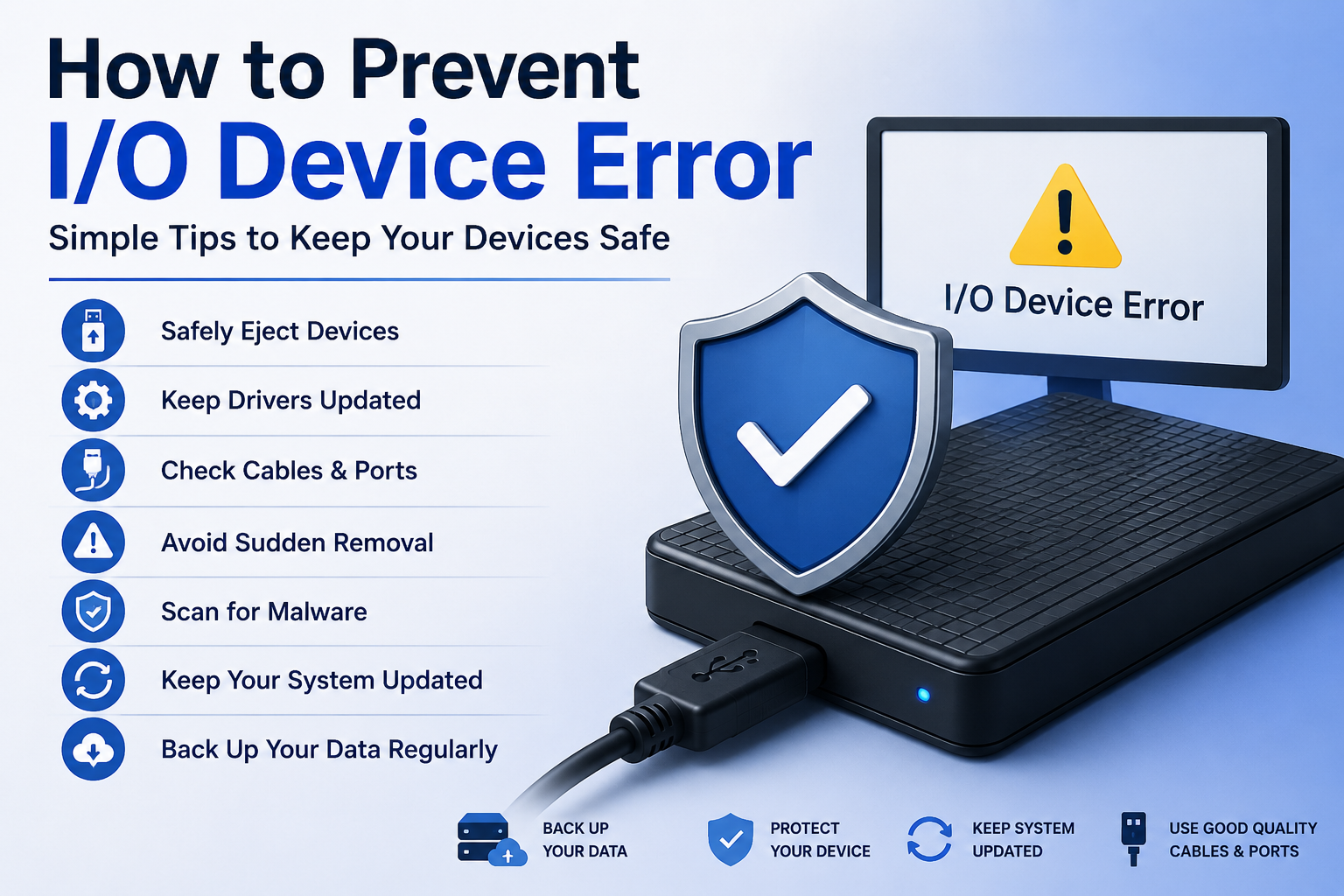
Preventing an is easier than fixing one.
Follow these best practices:
- Safely eject USB devices.
- Keep Windows updated.
- Update storage drivers regularly.
- Scan your computer for malware.
- Avoid unplugging devices while files are transferring.
- Back up important data frequently.
- Replace aging storage devices before failure.
These habits significantly reduce the risk of future errors.
Frequently Asked Questions
Is an I/O Device Error Serious?
It can be. Sometimes it’s caused by a loose cable, while other cases indicate hardware failure. Early troubleshooting increases the chance of recovering your data.
Can an I/O Device Error Cause Data Loss?
Yes. If the storage device is physically failing, continued use may worsen the damage. Always back up important files immediately.
Does Formatting Fix an I/O Device Error?
Formatting can solve problems caused by file system corruption, but it erases all stored data. Recover important files before formatting.
Can SSDs Show an I/O Device Error?
Yes. Although SSDs have no moving parts, firmware issues, damaged sectors, controller failures, or connection problems can still trigger an i/o device error.
Conclusion
An i/o device error doesn’t always mean your storage device is permanently damaged. In many situations, updating drivers, repairing the file system, checking cables, or correcting transfer settings can resolve the problem. If the error persists, prioritize recovering your data before attempting to format or replace the drive.By following the seven troubleshooting methods in this guide and practicing proper storage maintenance, you can minimize the chances of encountering an again and keep your files safe.Image Recommendation: Add an image of a Windows error dialog or external hard drive.


